Updates
Keep DeepFellow CLI, Server, and Infra up to date.
DeepFellow CLI
To update the DeepFellow CLI, run:
deepfellow cli updateThe command detects your package manager (uv tool or pipx) and runs the appropriate upgrade automatically. If it does not detect either, update manually by running pip install --upgrade deepfellow-cli.
All Components
To update the DeepFellow CLI, DeepFellow Infra, and DeepFellow Server in one step, run:
deepfellow updateThe command updates the CLI first. It then updates DeepFellow Infra and DeepFellow Server in a new deepfellow process, so these steps already run with the updated CLI. If the command doesn't find the updated deepfellow on your PATH, or can't start it, it prints a warning and runs these steps with the previous CLI version. The command skips a component that isn't installed or that you installed with --local-image. If one step fails, the command still runs the others and exits with an error.
To answer yes to every question, put the global --yes option before update:
deepfellow --yes updatedeepfellow update has no Nightshift options. With the global --non-interactive option and without --yes, it updates DeepFellow Server without adding a missing Nightshift worker and prints a warning that lists the features that don't work. See Nightshift Is Required.
DeepFellow CLI 0.34.x runs the Infra and Server steps with its own, old code. To update from 0.34.x, run deepfellow cli update first, and then deepfellow update.
DeepFellow Server
To update DeepFellow Server, run:
deepfellow server update [OPTIONS]Nightshift Is Required
Starting with the release that removes DF_NIGHTSHIFT_ENABLED, DeepFellow Server processes background jobs only through the Nightshift worker. A server without a running worker still starts. However, vector store file processing, Metadata Expansion, Document Summarization, Knowledge Graph ingestion, ontology discovery, webhook delivery, and vector store migration never finish.
If you installed DeepFellow Server with the CLI, update the CLI first, and then run deepfellow server update. On an install without the Nightshift worker, the command asks whether to add the worker and RabbitMQ before it changes anything, and lists the features that don't work without them:
❓      This DeepFellow Server version processes background jobs through the Nightshift worker and RabbitMQ, which this install doesn't have. Without them these features don't work:
          - adding files to vector stores (indexing)
          - knowledge compression and vector store migrations (re-embedding)
          - document summarization and metadata expansion
          - the knowledge graph (ingestion, ontology discovery)
          - webhook delivery
          - fine-tuning pipelines (data preparation, pipeline steps)
        Add Nightshift and RabbitMQ? [y/n] (y):
❓      Install a local RabbitMQ for DeepFellow Server? [y/n] (y):
If you add them, the command works as follows:
- For a local RabbitMQ, the command takes the username and password from
--rabbitmq-usernameand--rabbitmq-passwordor from.env, and generates the ones that are missing. It adds therabbitmqandnightshiftservices tocompose.yaml. - For an existing RabbitMQ, the command asks for its
host:port, username, and password. It adds only thenightshiftcontainer. - If
.envalready setsDF_RABBITMQ_URLto an existing RabbitMQ, the command uses that RabbitMQ without asking which RabbitMQ to use and prints a warning with its address. It does so even with--nightshiftor--yes. To use another RabbitMQ, pass--rabbitmq-url HOST:PORT. For a local one, pass--rabbitmq-url rabbitmq:5672. - If
.envsetsDF_NIGHTSHIFT_MODE, the command keeps that operating mode. Otherwise, the worker runs inalwaysmode. The command also switches toalwaysmode and prints a warning when the mode or schedule in.envisn't valid. It does the same forshiftmode when the host doesn't run systemd or when your systemd user session isn't reachable, for example aftersuorsudo -u. To switch toshiftmode later, log in as your user directly and rundeepfellow server nightshift mode shift.
If you decline, the command updates the server without the worker and lists the features that don't work. The next deepfellow server update asks again. To add the worker without the question, run deepfellow server update --nightshift or deepfellow server install. For an existing RabbitMQ, run deepfellow server update --rabbitmq-url HOST:PORT --rabbitmq-username USERNAME --rabbitmq-password PASSWORD.
To decide without a question, for example in a script, use one of the following:
| Command | Result |
|---|---|
deepfellow server update --nightshift | Adds the worker with a local RabbitMQ, or with the RabbitMQ that .env sets |
deepfellow server update --rabbitmq-url HOST:PORT --rabbitmq-username USERNAME --rabbitmq-password PASSWORD | Adds the worker with an existing RabbitMQ |
deepfellow server update --no-nightshift | Updates the server without the worker |
deepfellow --yes server update | Adds the worker with a local RabbitMQ, or with the RabbitMQ that .env sets, and restarts the server without questions |
--rabbitmq-username and --rabbitmq-password also add the worker without the first question. Unless .env sets a RabbitMQ, the command then asks whether to install a local RabbitMQ. With --non-interactive, it installs a local one with these credentials.
With --non-interactive and without --yes or any Nightshift or RabbitMQ option, deepfellow server update stops before it changes anything and exits with an error. deepfellow update adds no worker in that case. See All Components.
Apart from adding the worker, switching the MongoDB account, and binding the published ports, deepfellow server update keeps the existing compose.yaml. To get the current Nightshift worker definition on an install that already has the worker, run deepfellow server install again. The worker then gets the same environment as the server, a health check, and no plugins mount. From then on, deepfellow server start waits until the worker is healthy.
If you run DeepFellow Server without the CLI, check the following before you update:
- A Nightshift worker runs next to the server, with the same image, environment, and storage. See Run Nightshift.
- RabbitMQ is reachable from both the server and the worker. Its
consumer_timeoutis abovenightshift_jobs_timeout_seconds. See Job Timeouts. - The worker runs on the same host as the server or shares the server's storage directory through a shared file system.
DF_RABBITMQ_URL seeds the rabbitmq section of config.json. The server reads it on any boot where that section is not configured yet, so an install updated without the variable picks it up once you add it, for example with deepfellow server install. After the section is saved, change the RabbitMQ connection with the Server Configuration card or PUT /admin/config. See RabbitMQ Connection.
MongoDB Account
If .env has no DF_MONGO_INITDB_ROOT_USERNAME, the server connects to the bundled MongoDB container with the root account. On such an install, deepfellow server update moves the server to an account with read and write access to the server's database only. After the update:
DF_MONGO_USERandDF_MONGO_PASSWORDhold the new account.DF_MONGO_INITDB_ROOT_USERNAMEandDF_MONGO_INITDB_ROOT_PASSWORDhold the credentials of the previous account, which keeps root access.
The server switches to the new account when it restarts. If you decline the restart at the end of the update, run deepfellow server restart. For administrative tasks, such as a backup of all databases or user management, use the root account.
If the switch fails, the command prints a warning and leaves the install as it was. The next deepfellow server update tries again.
Published Ports
An install made with an earlier CLI version publishes its ports with no host address, so Docker publishes them on all network interfaces. This applies to the bundled MongoDB and, on older installs or installs made with --dev, to the other internal services. deepfellow server update changes compose.yaml as follows:
- The
serverport gets theDF_SERVER_BIND_ADDRESShost address. While the variable is unset, the port stays on all interfaces. The change only lets you set a bind address later. - If an internal service publishes a port on all interfaces, the command asks whether to move the port to
127.0.0.1:
❓ MongoDB and other internal services are published on all network interfaces. Restrict them to 127.0.0.1? [y/n] (y):If you confirm, the ports move to 127.0.0.1, and the command prints how to undo it:
deepfellow server env set INTERNAL_BIND_ADDRESS ""If you decline, the command sets DF_INTERNAL_BIND_ADDRESS to an empty value. The ports stay on all interfaces, and the next update doesn't ask again. With --yes or --non-interactive, the command moves the ports without the question. If .env already sets DF_INTERNAL_BIND_ADDRESS, the command uses that address without the question.
The command changes only the services that the installer creates. A service you added to compose.yaml yourself, such as a reverse proxy, keeps its ports.
The ports move when the server restarts. If you decline the restart at the end of the update, the command prints a warning, and the ports stay on all interfaces until you run deepfellow server restart. When the command moves the ports, it updates the install even if the server already runs the newest image.
DeepFellow Infra
To update DeepFellow Infra, run:
deepfellow infra update [OPTIONS]On an install made with an earlier CLI version, the command gives the infra port in compose.yaml the DF_INFRA_BIND_ADDRESS host address. While the variable is unset, the port stays on all interfaces. The change only lets you set a bind address later, and it takes effect after a restart.
Both deepfellow infra update and deepfellow server update accept the following options:
--tag: updates to the given version, for example--tag 0.36.0--image: updates to the given Docker image, for example--image hub.simplito.com/deepfellow/deepfellow-infra:latest--local-image: uses the locally built Docker image configured incompose.yamlinstead of pulling one from the registry
For DeepFellow Server, --local-image also applies to the Nightshift worker, which runs the server image. deepfellow server update also accepts the Nightshift options described in Nightshift Is Required.
Models and Services
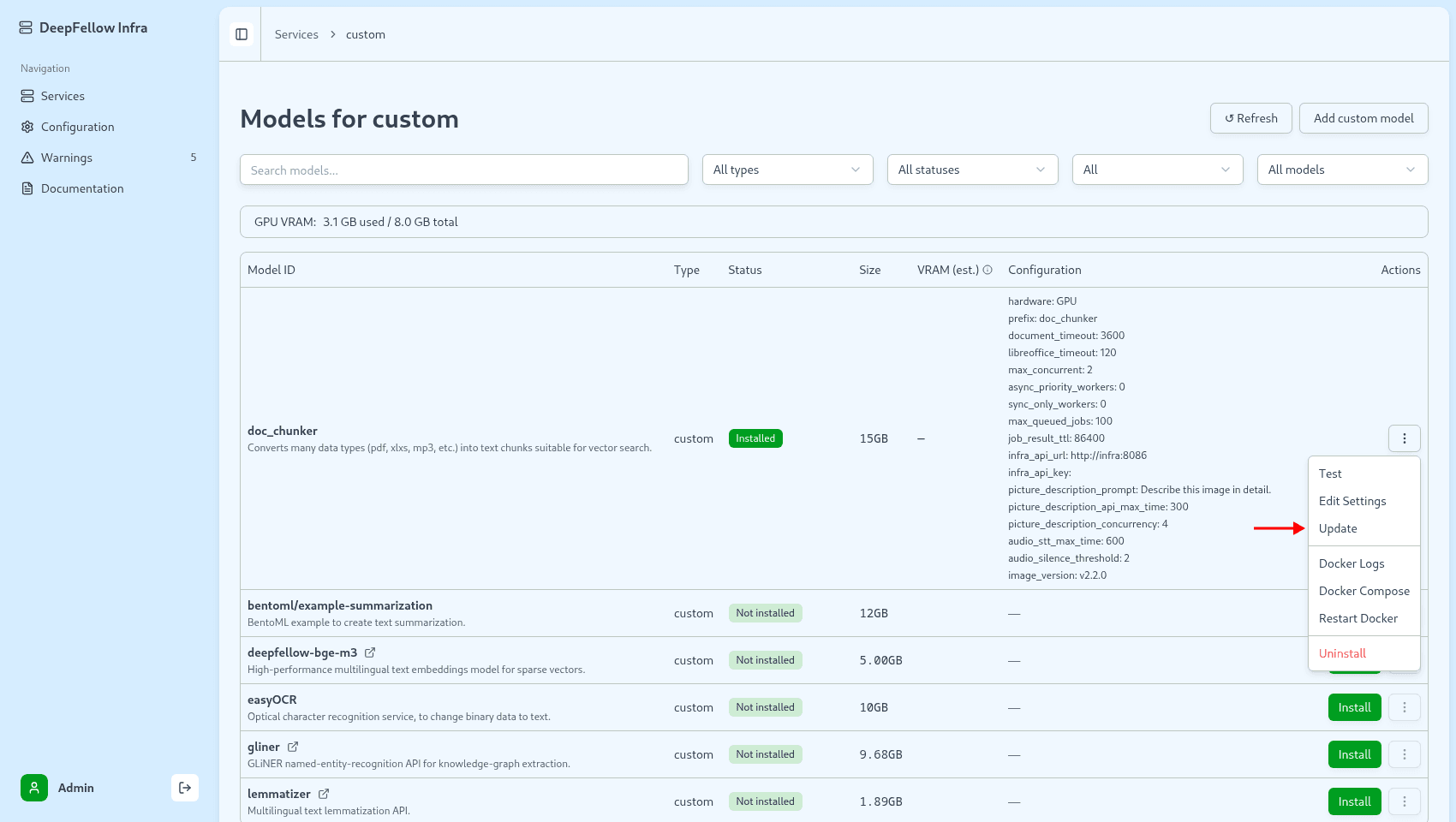
deepfellow infra update replaces the DeepFellow Infra image only. Models and services that run in their own containers, such as doc_chunker in the custom service, keep the image tag they were installed with. A model card shows that tag as image_version in its configuration. Update each model or service in the Infra Web Panel or with the DeepFellow CLI.
Update a Model: Doc Chunker Example
The examples below move Doc Chunker from v2.2.0 to v2.4.0. Other models with their own Docker image follow the same steps.
In the Infra Web Panel
Open the services view, click custom, and open the ⋮ menu on the doc_chunker card. Click Update.
Check the versions in the confirmation window and click "Update". DeepFellow Infra picks the newest release for the hardware the model runs on, recreates the container with the new image, and keeps all other settings.
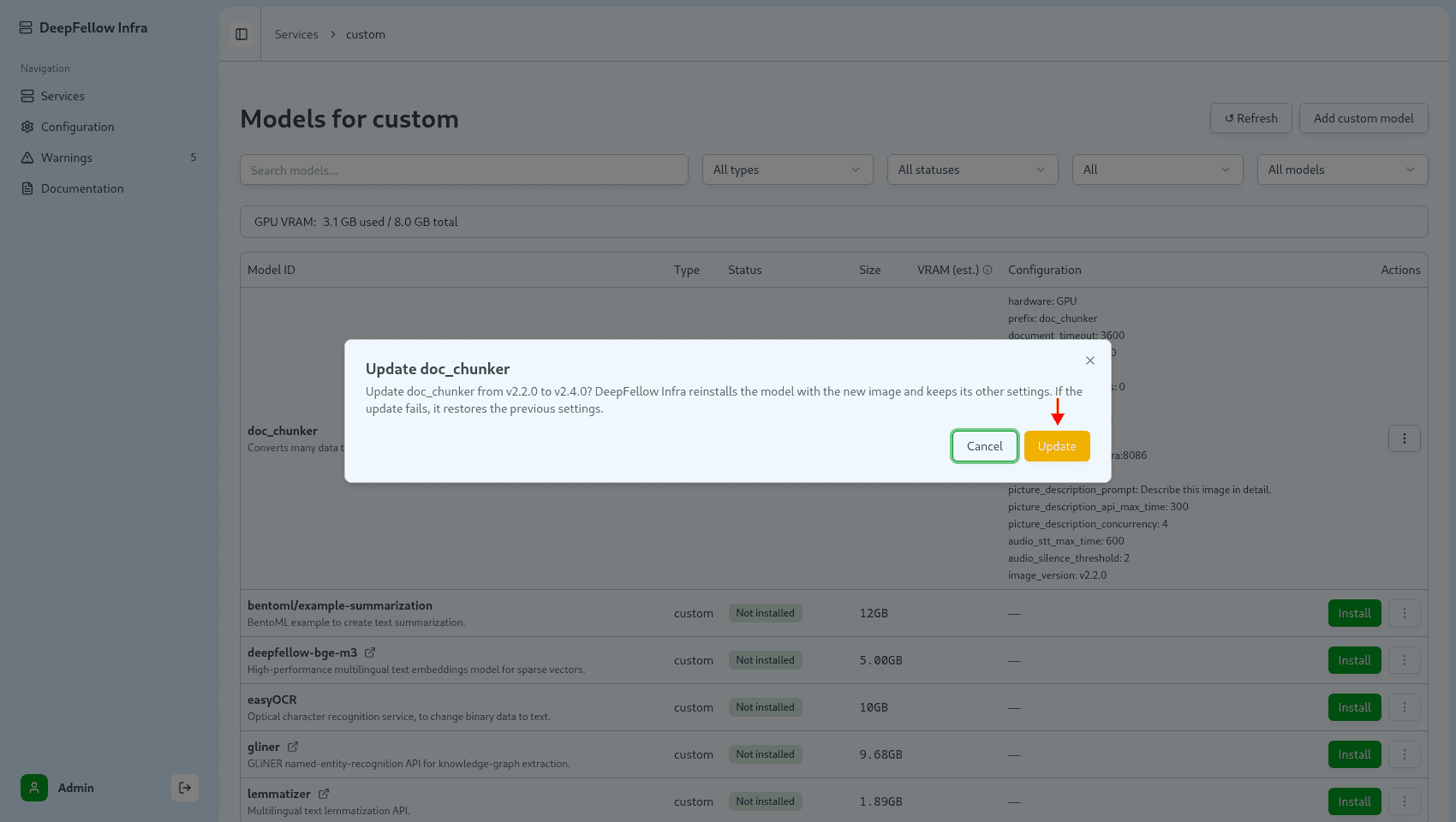
Wait for the message "doc_chunker updated to v2.4.0." and the green "Installed" label. The image_version line in the card's configuration shows the new tag.
If the model already runs the newest release, Update says so and changes nothing. If the recreation fails, DeepFellow Infra restores the previous settings. See Editing a Service.
Update never picks a variant such as v2.3.0-volta. To choose a version yourself, click Edit Settings in the same menu, select a tag in Docker image version, and click "Save". See Selecting a Docker Image Version.
With the CLI
Update the CLI with deepfellow cli update first, so it has the update and versions commands.
List the versions available for the model. The newest release comes first, and the labels mark the installed, newest, and default versions.
deepfellow infra model versions custom doc_chunkerimage: hub.simplito.com/deepfellow/doc-chunker-gpu
- v2.4.0 (newest, default)
- v2.3.0-volta
- v2.3.0
- v2.2.0 (installed)Update the model. Without --image-version, the command picks the newest release and asks you to confirm.
deepfellow infra model update custom doc_chunkerTo choose a version yourself, pass it with --image-version. Put the global --yes option before infra to skip the confirmation.
deepfellow --yes infra model update custom doc_chunker --image-version v2.3.0Wait for the command to report Model doc_chunker updated., and run deepfellow infra model list custom --installed to confirm that the model is installed.
The command keeps all other settings of the model. To change other settings, pass --set key=value for each one, or --spec with a JSON object. A command with only --set or --spec leaves the image version as it is.
deepfellow infra model update custom doc_chunker --set max_concurrent=4See deepfellow infra model for all options.
Doc Chunker keeps registered tokenizers and conversion job results under DATA_DIR. The Infra install form mounts no volume there, so an update that recreates the container removes them. Register your tokenizers again after the update, and download finished job results before you start. See Data Storage.
Update a Service
A service that runs in a container, such as ollama, vllm, llamacpp, or sglang, updates the same way.
In the Infra Web Panel, open the ⋮ menu of the service and click Update to move to the newest release. To choose a version yourself, open the service's Settings, click Edit, choose a tag in Docker image version, and click Save. DeepFellow Infra recreates the container with the new image and reloads the installed models. See Selecting a Docker Image Version.
With the CLI, list the versions and update the service. Name an instance of a service as SERVICE|INSTANCE.
deepfellow infra service versions ollama
deepfellow infra service update ollama --image-version 0.12.0
See deepfellow infra service for all options.
We use cookies on our website. We use them to ensure proper functioning of the site and, if you agree, for purposes such as analytics, marketing, and targeting ads.